
- Sản phẩm & Dịch vụSản phẩm & Dịch vụ
- Giải phápGiải pháp
- Bảng giáBảng giá
- Công tyCông ty
- Tài liệuTài liệu

vi
vi
Chuyên mục với các bài viết hướng dẫn, nghiên cứu và phân tích chi tiết về kỹ thuật, các xu hướng công nghệ mới nhất dành cho lập trình viên.

Technical Writer

I have over 5 years of experience writing technical documentation for tech products, making them accessible and user-friendly. My focus is always on providing clear and precise information. @#@ Tôi đã có hơn 5 năm kinh nghiệm viết tài liệu kỹ thuật cho các sản phẩm công nghệ, giúp người dùng dễ dàng tiếp cận và sử dụng. Tôi luôn tập trung vào việc cung cấp thông tin chính xác và dễ hiểu.
Thảo luận (0)
Đăng nhập để thảo luận
Trong bài hướng dẫn này, chúng ta sẽ tạo một ứng dụng Android có khả năng dẫn đường giữa hai điểm trên bản đồ Google bằng cách sử dụng Google Maps Directions API.

Hãy tạo một Google Map API Key mới trong API console theo các bước được trình bày trong bài hướng dẫn này. Tạo một project mới trong Android Studio và chọn template là Google Maps Activity. Thêm API key đã lấy vào file google_maps_api.xml nằm trong thư mục debug->res->values.
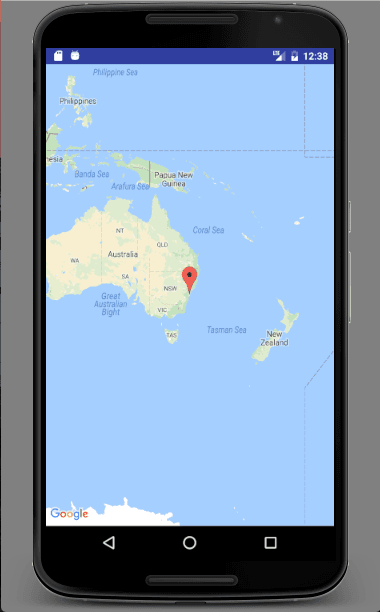
Giao diện ban đầu của project sẽ trông như thế này nếu bạn đang sử dụng phiên bản Android Studio mới nhất.
Cấu trúc thư mục sẽ có dạng như sau:
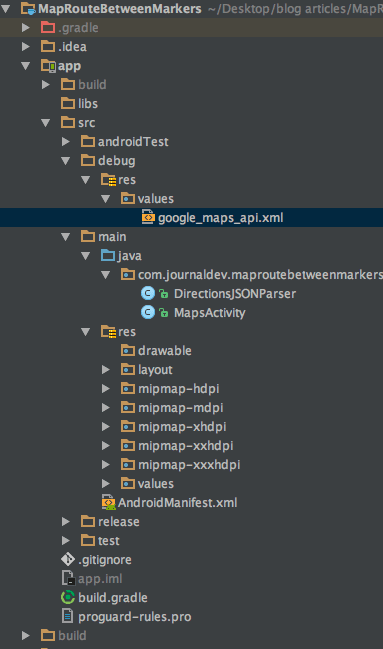
File DirectionsJSONParser.java chịu trách nhiệm phân tích cú pháp (parse) các vị trí và trả về tuyến đường. Sau đó, một phương thức sẽ được gọi để lấy dữ liệu polyline (dữ liệu gồm nhiều đoạn thẳng trên bản đồ) để vẽ lên bản đồ.
File MainActivity.java có nội dung như sau:
public class MapsActivity extends FragmentActivity implements OnMapReadyCallback {
private GoogleMap mMap;
ArrayList markerPoints= new ArrayList();

@Override
protected void onCreate(Bundle savedInstanceState) {
    super.onCreate(savedInstanceState);
    setContentView(R.layout.activity_maps);
    // Obtain the SupportMapFragment and get notified when the map is ready to be used.
    SupportMapFragment mapFragment = (SupportMapFragment) getSupportFragmentManager()
            .findFragmentById(R.id.map);
    mapFragment.getMapAsync(this);
}

@Override
public void onMapReady(GoogleMap googleMap) {
    mMap = googleMap;
    LatLng sydney = new LatLng(-34, 151);
    //mMap.addMarker(new MarkerOptions().position(sydney).title("Marker in Sydney"));
    mMap.moveCamera(CameraUpdateFactory.newLatLngZoom(sydney, 16));

    mMap.setOnMapClickListener(new GoogleMap.OnMapClickListener() {
        @Override
        public void onMapClick(LatLng latLng) {

            if (markerPoints.size() > 1) {
                markerPoints.clear();
                mMap.clear();
            }

            // Adding new item to the ArrayList
            markerPoints.add(latLng);

            // Creating MarkerOptions
            MarkerOptions options = new MarkerOptions();

            // Setting the position of the marker
            options.position(latLng);

            if (markerPoints.size() == 1) {
                options.icon(BitmapDescriptorFactory.defaultMarker(BitmapDescriptorFactory.HUE_GREEN));
            } else if (markerPoints.size() == 2) {
                options.icon(BitmapDescriptorFactory.defaultMarker(BitmapDescriptorFactory.HUE_RED));
            }

            // Add new marker to the Google Map Android API V2
            mMap.addMarker(options);

            // Checks, whether start and end locations are captured
            if (markerPoints.size() >= 2) {
                LatLng origin = (LatLng) markerPoints.get(0);
                LatLng dest = (LatLng) markerPoints.get(1);

                // Getting URL to the Google Directions API
                String url = getDirectionsUrl(origin, dest);

                DownloadTask downloadTask = new DownloadTask();

                // Start downloading json data from Google Directions API
                downloadTask.execute(url);
            }

        }
    });

}

private class DownloadTask extends AsyncTask {

    @Override
    protected String doInBackground(String... url) {

        String data = "";

        try {
            data = downloadUrl(url[0]);
        } catch (Exception e) {
            Log.d("Background Task", e.toString());
        }
        return data;
    }

    @Override
    protected void onPostExecute(String result) {
        super.onPostExecute(result);

        ParserTask parserTask = new ParserTask();

        parserTask.execute(result);

    }
}

private class ParserTask extends AsyncTask<String, Integer, List<List<HashMap>>> {

    // Parsing the data in non-ui thread
    @Override
    protected List<List<HashMap>> doInBackground(String... jsonData) {

        JSONObject jObject;
        List<List<HashMap>> routes = null;

        try {
            jObject = new JSONObject(jsonData[0]);
            DirectionsJSONParser parser = new DirectionsJSONParser();

            routes = parser.parse(jObject);
        } catch (Exception e) {
            e.printStackTrace();
        }
        return routes;
    }

    @Override
    protected void onPostExecute(List<List<HashMap>> result) {
        ArrayList points = null;
        PolylineOptions lineOptions = null;
        MarkerOptions markerOptions = new MarkerOptions();

        for (int i = 0; i < result.size(); i++) {
            points = new ArrayList();
            lineOptions = new PolylineOptions();

            List<HashMap> path = result.get(i);

            for (int j = 0; j < path.size(); j++) {
                HashMap point = path.get(j);

                double lat = Double.parseDouble(point.get("lat"));
                double lng = Double.parseDouble(point.get("lng"));
                LatLng position = new LatLng(lat, lng);

                points.add(position);
            }

            lineOptions.addAll(points);
            lineOptions.width(12);
            lineOptions.color(Color.RED);
            lineOptions.geodesic(true);

        }

// Drawing polyline in the Google Map for the i-th route
mMap.addPolyline(lineOptions);
}
}
private String getDirectionsUrl(LatLng origin, LatLng dest) {

    // Origin of route
    String str_origin = "origin=" + origin.latitude + "," + origin.longitude;

    // Destination of route
    String str_dest = "destination=" + dest.latitude + "," + dest.longitude;

    // Sensor enabled
    String sensor = "sensor=false";
    String mode = "mode=driving";

    // Building the parameters to the web service
    String parameters = str_origin + "&" + str_dest + "&" + sensor + "&" + mode;

    // Output format
    String output = "json";

    // Building the url to the web service
    String url = "<https://maps.googleapis.com/maps/api/directions/>" + output + "?" + parameters;


    return url;
}

private String downloadUrl(String strUrl) throws IOException {
    String data = "";
    InputStream iStream = null;
    HttpURLConnection urlConnection = null;
    try {
        URL url = new URL(strUrl);

        urlConnection = (HttpURLConnection) url.openConnection();

        urlConnection.connect();

        iStream = urlConnection.getInputStream();

        BufferedReader br = new BufferedReader(new InputStreamReader(iStream));

        StringBuffer sb = new StringBuffer();

        String line = "";
        while ((line = br.readLine()) != null) {
            sb.append(line);
        }

        data = sb.toString();

        br.close();

    } catch (Exception e) {
        Log.d("Exception", e.toString());
    } finally {
        iStream.close();
        urlConnection.disconnect();
    }
    return data;
}

}
Chúng ta đã thêm một listener tên là onMapClickListener vào đối tượng bản đồ map. Listener này được dùng để đặt marker (điểm đánh dấu) tại vị trí được chọn bởi người dùng và lưu vị trí đó vào một ArrayList (danh sách chứa các mảng). ArrayList này chỉ dùng để lưu trữ marker cho điểm xuất phát và điểm đến.
Tiếp theo, ta dùng getDirectionsUrl() gọi đến Directions API URL với output và các tham số dạng như sau:
"<https://maps.googleapis.com/maps/api/directions/>" + output + "?" + parameters;
Biến output chứa chuỗi “json” và chuỗi tham số được tạo như sau:
String parameters = str_origin + "&" + str_dest + "&" + sensor + "&" + mode;
Trong ứng dụng này, ta đã đặt mode=driving. Các phương thức di chuyển khác bao gồm:
Kết quả của ứng dụng được hiển thị như sau: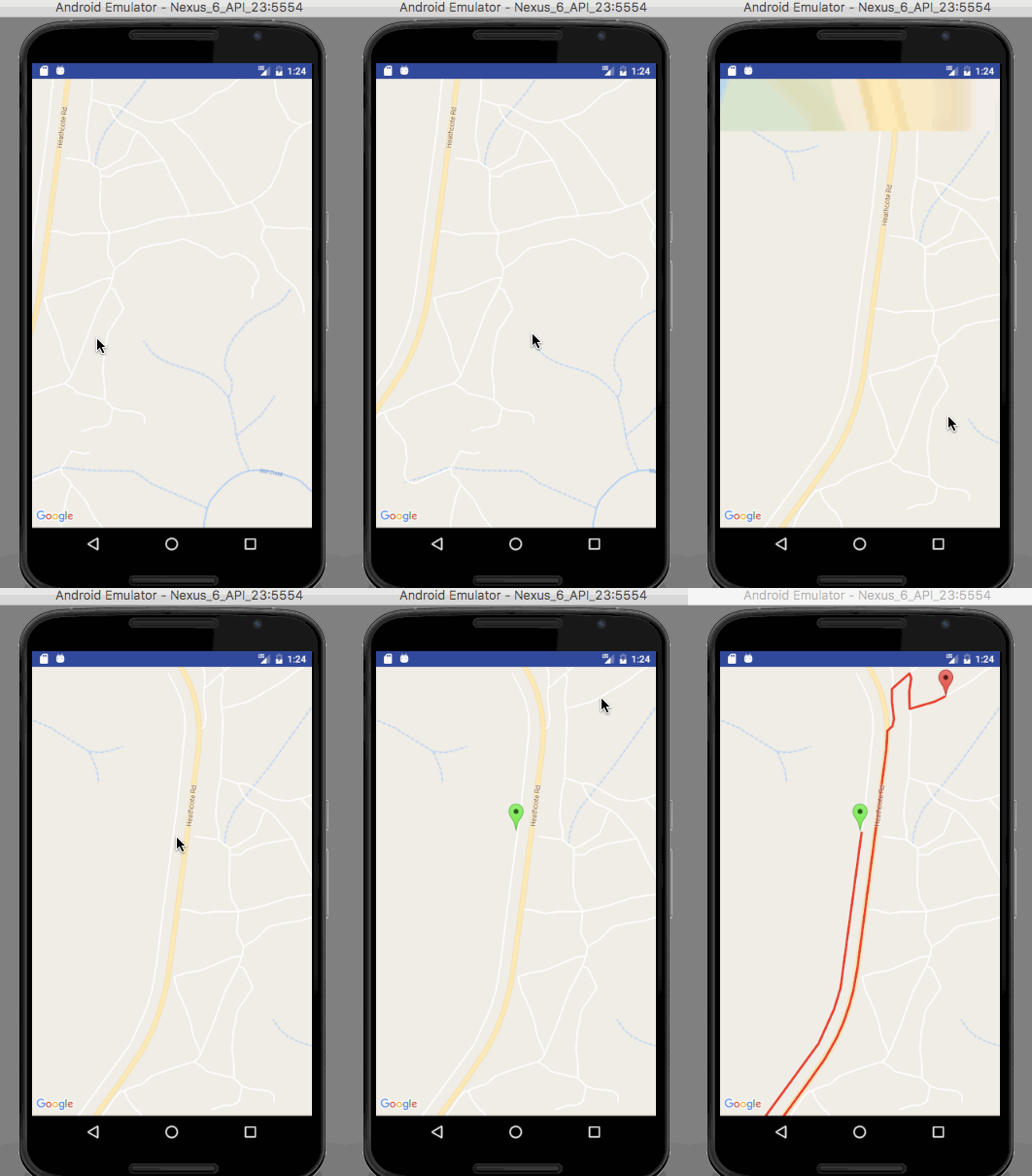 Bạn có thể tải về project ví dụ hoàn chỉnh từ liên kết này để bắt đầu tạo ứng dụng dẫn đường với Google Maps trên Android. Nhớ đừng quên thêm Google Map API key của riêng bạn vào project trước khi bắt đầu nhé.