- Sản phẩm & Dịch vụSản phẩm & Dịch vụ
- Giải phápGiải pháp
- Bảng giáBảng giá
- Công tyCông ty
- Tài liệuTài liệu

vi
vi
Chuyên mục với các bài viết hướng dẫn, nghiên cứu và phân tích chi tiết về kỹ thuật, các xu hướng công nghệ mới nhất dành cho lập trình viên.

Technical Writer

I have over 5 years of experience writing technical documentation for tech products, making them accessible and user-friendly. My focus is always on providing clear and precise information. @#@ Tôi đã có hơn 5 năm kinh nghiệm viết tài liệu kỹ thuật cho các sản phẩm công nghệ, giúp người dùng dễ dàng tiếp cận và sử dụng. Tôi luôn tập trung vào việc cung cấp thông tin chính xác và dễ hiểu.
Thảo luận (0)
Đăng nhập để thảo luận
Trong hướng dẫn này, chúng ta sẽ cùng tìm hiểu và triển khai NavigationView trong ứng dụng Android. Ở đây, bạn cũng sẽ học cách tùy chỉnh giao diện để NavigationView có thể mở từ phải sang trái.

Chúng ta đã từng triển khai Navigation Drawer trong một hướng dẫn trước, và việc đó khá tốn công để viết mã.
NavigationView là một lựa chọn dễ dàng và thuận tiện hơn để thay thế Navigation Drawer. Với Navigation Drawer, chúng ta phải tạo các item bằng cách sử dụng ListView/RecyclerView và tự viết Adapter tùy chỉnh. Tuy nhiên, với NavigationView, tất cả những gì chúng ta cần làm là inflate các mục từ resource menu – bạn sẽ thấy rõ điều này ở phần sau. Thông thường, NavigationView được đặt bên trong một DrawerLayout.
Android Studio cung cấp sẵn một Navigation Drawer Activity, mẫu activity này đã tích hợp sẵn một menu điều hướng chuẩn. Bạn có thể chọn nó từ hộp thoại sau:
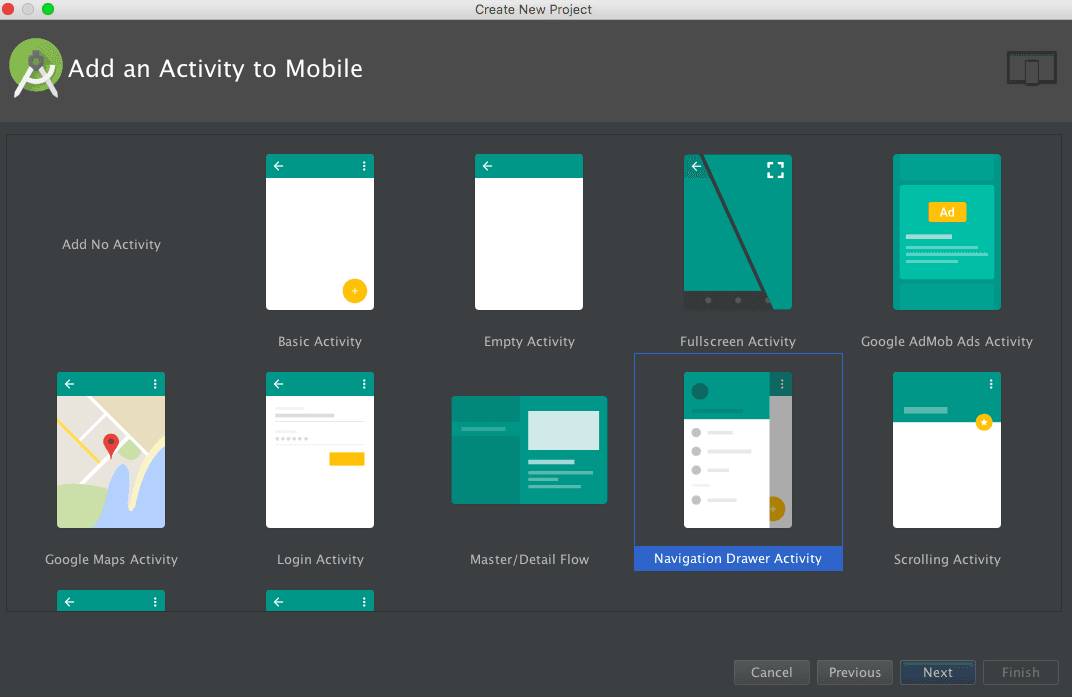
Lớp NavigationView kế thừa từ FrameLayout. Trong XML, nó được định nghĩa bằng thẻ:
<android.support.design.widget.NavigationView />
Về cơ bản, NavigationView gồm hai thành phần chính:
Đây là phần hiển thị ở trên cùng của Navigation Drawer. Thông thường, nó chứa ảnh đại diện, tên, địa chỉ email và ảnh nền. View này được định nghĩa trong một tệp layout riêng, mà chúng ta sẽ xem ngay sau đây. Để thêm layout này vào NavigationView, ta dùng thuộc tính:
Đây là phần hiển thị bên dưới HeaderView, chứa danh sách các mục điều hướng. Tệp layout cho phần này được định nghĩa trong thư mục menu. Để thêm layout menu vào NavigationView, ta dùng thuộc tính:
Một số thuộc tính XML quan trọng để tuỳ chỉnh NavigationView:
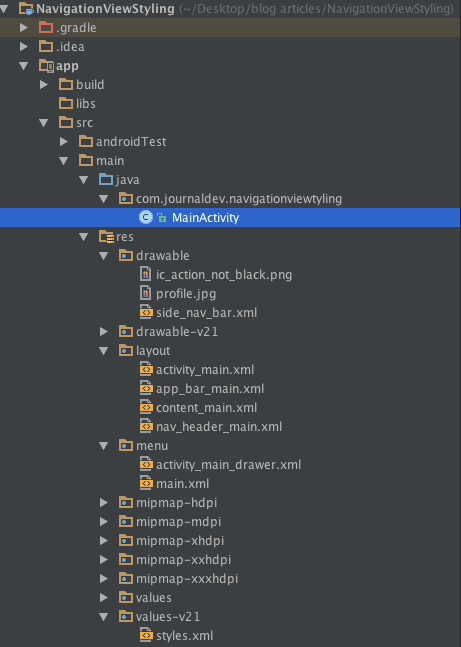
Hãy xem cấu trúc dự án của template NavigationView có sẵn. File activity_main.xml chính là layout dành cho MainActivity.
<?xml version="1.0" encoding="utf-8"?>
<android.support.v4.widget.DrawerLayout xmlns:android="<https://schemas.android.com/apk/res/android>"
xmlns:app="<https://schemas.android.com/apk/res-auto>"
xmlns:tools="<https://schemas.android.com/tools>"
android:id="@+id/drawer_layout"
android:layout_width="match_parent"
android:layout_height="match_parent"
android:fitsSystemWindows="true"
tools:openDrawer="start">
<include
layout="@layout/app_bar_main"
android:layout_width="match_parent"
android:layout_height="match_parent" />
<android.support.design.widget.NavigationView
android:id="@+id/nav_view"
android:layout_width="wrap_content"
android:layout_height="match_parent"
android:layout_gravity="start"
android:fitsSystemWindows="true"
app:headerLayout="@layout/nav_header_main"
app:menu="@menu/activity_main_drawer" />
</android.support.v4.widget.DrawerLayout>
Lưu ý: DrawerLayout ở trên là layout bao gồm nội dung của navigation drawer và nội dung chính của ứng dụng. Layout app_bar_main.xml gồm một CoordinatorLayout chứa ToolBar, FloatingActionButton và content_main.xml (hiển thị một TextView đơn giản với dòng chữ “Hello World”). Các layout được liệt kê bên dưới. app_bar_main.xml
<?xml version="1.0" encoding="utf-8"?>
<android.support.design.widget.CoordinatorLayout xmlns:android="<https://schemas.android.com/apk/res/android>"
xmlns:app="<https://schemas.android.com/apk/res-auto>"
xmlns:tools="<https://schemas.android.com/tools>"
android:layout_width="match_parent"
android:layout_height="match_parent"
android:fitsSystemWindows="true"
tools:context="com.journaldev.navigationviewstyling.MainActivity">
<android.support.design.widget.AppBarLayout
android:layout_width="match_parent"
android:layout_height="wrap_content"
android:theme="@style/AppTheme.AppBarOverlay">
<android.support.v7.widget.Toolbar
android:id="@+id/toolbar"
android:layout_width="match_parent"
android:layout_height="?attr/actionBarSize"
android:background="?attr/colorPrimary"
app:popupTheme="@style/AppTheme.PopupOverlay" />
</android.support.design.widget.AppBarLayout>
<include layout="@layout/content_main" />
<android.support.design.widget.FloatingActionButton
android:id="@+id/fab"
android:layout_width="wrap_content"
android:layout_height="wrap_content"
android:layout_gravity="bottom|end"
android:layout_margin="@dimen/fab_margin"
android:src="@android:drawable/ic_dialog_email" />
</android.support.design.widget.CoordinatorLayout>
Layout content_main.xml được liệt kê bên dưới:
<?xml version="1.0" encoding="utf-8"?>
<RelativeLayout xmlns:android="<https://schemas.android.com/apk/res/android>"
xmlns:app="<https://schemas.android.com/apk/res-auto>"
xmlns:tools="<https://schemas.android.com/tools>"
android:layout_width="match_parent"
android:layout_height="match_parent"
android:paddingBottom="@dimen/activity_vertical_margin"
android:paddingLeft="@dimen/activity_horizontal_margin"
android:paddingRight="@dimen/activity_horizontal_margin"
android:paddingTop="@dimen/activity_vertical_margin"
app:layout_behavior="@string/appbar_scrolling_view_behavior"
tools:context="com.journaldev.navigationviewstyling.MainActivity"
tools:showIn="@layout/app_bar_main">
<TextView
android:layout_width="wrap_content"
android:layout_height="wrap_content"
android:text="Hello World!" />
</RelativeLayout>
Layout headerLayout mặc định và menu cho NavigationView được liệt kê bên dưới: nav_header_main.xml
<?xml version="1.0" encoding="utf-8"?>
<LinearLayout xmlns:android="<https://schemas.android.com/apk/res/android>"
android:layout_width="match_parent"
android:layout_height="@dimen/nav_header_height"
android:background="@drawable/side_nav_bar"
android:gravity="bottom"
android:orientation="vertical"
android:paddingBottom="@dimen/activity_vertical_margin"
android:paddingLeft="@dimen/activity_horizontal_margin"
android:paddingRight="@dimen/activity_horizontal_margin"
android:paddingTop="@dimen/activity_vertical_margin"
android:theme="@style/ThemeOverlay.AppCompat.Dark">
<ImageView
android:id="@+id/imageView"
android:layout_width="wrap_content"
android:layout_height="wrap_content"
android:paddingTop="@dimen/nav_header_vertical_spacing"
android:src="@android:drawable/sym_def_app_icon" />
<TextView
android:layout_width="match_parent"
android:layout_height="wrap_content"
android:paddingTop="@dimen/nav_header_vertical_spacing"
android:text="Android Studio"
android:textAppearance="@style/TextAppearance.AppCompat.Body1" />
<TextView
android:id="@+id/textView"
android:layout_width="wrap_content"
android:layout_height="wrap_content"
<android:text="android.studio@android.com>" />
</LinearLayout>
activity_main_drawer.xml
<menu xmlns:android="<https://schemas.android.com/apk/res/android>"><group android:checkableBehavior="single"> <item android:id="@+id/nav_camera" android:icon="@drawable/ic_menu_camera" android:title="Import" /> <item android:id="@+id/nav_gallery" android:icon="@drawable/ic_menu_gallery" android:title="Gallery" /> <item android:id="@+id/nav_slideshow" android:icon="@drawable/ic_menu_slideshow" android:title="Slideshow" /> <item android:id="@+id/nav_manage" android:icon="@drawable/ic_menu_manage" android:title="Tools" /> </group> <item android:title="Communicate"> <menu> <item android:id="@+id/nav_share" android:icon="@drawable/ic_menu_share" android:title="Share" /> <item android:id="@+id/nav_send" android:icon="@drawable/ic_menu_send" android:title="Send" /> </menu> </item></menu>
Thuộc tính XML android:checkableBehavior được định nghĩa cho toàn bộ nhóm (group) và chấp nhận một trong ba giá trị sau:
Thuộc tính android:checkable được dùng để thiết lập khả năng chọn cho từng mục riêng lẻ. Thuộc tính này nhận giá trị kiểu boolean. Lưu ý: Có thể tạo các mục menu lồng nhau trong layout được khai báo bằng app:menu.
File MainActivity.java được liệt kê bên dưới:
package com.journaldev.navigationviewstyling;import android.os.Bundle; import android.support.design.widget.FloatingActionButton; import android.support.design.widget.Snackbar; import android.view.View; import android.support.design.widget.NavigationView; import android.support.v4.view.GravityCompat; import android.support.v4.widget.DrawerLayout; import android.support.v7.app.ActionBarDrawerToggle; import android.support.v7.app.AppCompatActivity; import android.support.v7.widget.Toolbar; import android.view.Menu; import android.view.MenuItem;
public class MainActivity extends AppCompatActivity implements NavigationView.OnNavigationItemSelectedListener {
@Override protected void onCreate(Bundle savedInstanceState) { super.onCreate(savedInstanceState); setContentView(R.layout.activity_main); Toolbar toolbar = (Toolbar) findViewById(R.id.toolbar); setSupportActionBar(toolbar); FloatingActionButton fab = (FloatingActionButton) findViewById(R.id.fab); fab.setOnClickListener(new View.OnClickListener() { @Override public void onClick(View view) { Snackbar.make(view, "Replace with your own action", Snackbar.LENGTH_LONG) .setAction("Action", null).show(); } }); DrawerLayout drawer = (DrawerLayout) findViewById(R.id.drawer_layout); ActionBarDrawerToggle toggle = new ActionBarDrawerToggle( this, drawer, toolbar, R.string.navigation_drawer_open, R.string.navigation_drawer_close); //drawer.setDrawerListener(toggle); drawer.addDrawerListener(toggle); toggle.syncState(); NavigationView navigationView = (NavigationView) findViewById(R.id.nav_view); navigationView.setNavigationItemSelectedListener(this); } @Override public void onBackPressed() { DrawerLayout drawer = (DrawerLayout) findViewById(R.id.drawer_layout); if (drawer.isDrawerOpen(GravityCompat.START)) { drawer.closeDrawer(GravityCompat.START); } else { super.onBackPressed(); } } @Override public boolean onCreateOptionsMenu(Menu menu) { // Inflate the menu; this adds items to the action bar if it is present. getMenuInflater().inflate(R.menu.main, menu); return true; } @Override public boolean onOptionsItemSelected(MenuItem item) { // Handle action bar item clicks here. The action bar will // automatically handle clicks on the Home/Up button, so long // as you specify a parent activity in AndroidManifest.xml. int id = item.getItemId(); //noinspection SimplifiableIfStatement if (id == R.id.action_settings) { return true; } return super.onOptionsItemSelected(item); } @SuppressWarnings("StatementWithEmptyBody") @Override public boolean onNavigationItemSelected(MenuItem item) { // Handle navigation view item clicks here. int id = item.getItemId(); if (id == R.id.nav_camera) { // Handle the camera action } else if (id == R.id.nav_gallery) { } else if (id == R.id.nav_slideshow) { } else if (id == R.id.nav_manage) { } else if (id == R.id.nav_share) { } else if (id == R.id.nav_send) { } DrawerLayout drawer = (DrawerLayout) findViewById(R.id.drawer_layout); drawer.closeDrawer(GravityCompat.START); return true; }}
Các kết luận quan trọng rút ra từ đoạn mã trên được trình bày như sau:
@Override
    public boolean onNavigationItemSelected(MenuItem item) {
        int id = item.getItemId();
    if (id == R.id.nav_camera) {
        // Handle the camera action
        Toast.makeText(getApplicationContext(), "Camera is clicked", Toast.LENGTH_SHORT).show();

    } else if (id == R.id.nav_gallery) {
        Toast.makeText(getApplicationContext(), "Gallery is clicked", Toast.LENGTH_SHORT).show();

    } else if (id == R.id.nav_slideshow) {
        Toast.makeText(getApplicationContext(), "Slideshow is clicked", Toast.LENGTH_SHORT).show();

    } else if (id == R.id.nav_manage) {
        Toast.makeText(getApplicationContext(), "Tools is clicked", Toast.LENGTH_SHORT).show();

    } else if (id == R.id.nav_share) {
        Toast.makeText(getApplicationContext(), "Share is clicked", Toast.LENGTH_SHORT).show();

    } else if (id == R.id.nav_send) {
        Toast.makeText(getApplicationContext(), "Send is clicked", Toast.LENGTH_SHORT).show();

    }

    DrawerLayout drawer = (DrawerLayout) findViewById(R.id.drawer_layout);
    drawer.closeDrawer(GravityCompat.START);
    return true;
}
ActionBarDrawerToggle được khởi tạo như sau:ActionBarDrawerToggle toggle = new ActionBarDrawerToggle(
this, drawer, toolbar, R.string.navigation_drawer_open, R.string.navigation_drawer_close);
ActionBarDrawerToggle được sử dụng cùng với DrawerLayout để triển khai các chức năng được khuyến nghị dành cho Navigation Drawer. Nó có các công dụng sau:
ToolBar hoặc ActionBar.Lưu ý: android.support.v4.app.ActionBarDrawerToggle đã bị deprecate. Luôn sử dụng android.support.v7.app.ActionBarDrawerToggle để thay thế.
DrawerLayout, sử dụng phương thức sau: drawer.addDrawerListener(toggle); Listener này giúp theo dõi các sự kiện của drawer.Lưu ý: drawer.setDrawerListener(toggle) đã bị deprecate.
3. toggle.syncState(); Dòng này sẽ đồng bộ trạng thái của biểu tượng, hiển thị biểu tượng hamburger hoặc mũi tên quay lại tuỳ theo việc drawer đang mở hay đóng. Nếu bỏ qua dòng này, biểu tượng sẽ không chuyển từ mũi tên sang hamburger khi drawer đóng lại.
4. drawer.closeDrawer(GravityCompat.START); Lệnh này dùng để đóng drawer, với START là cạnh bên trái theo mặc định.
Dưới đây là cách mà NavigationView mặc định hiển thị trong ứng dụng:
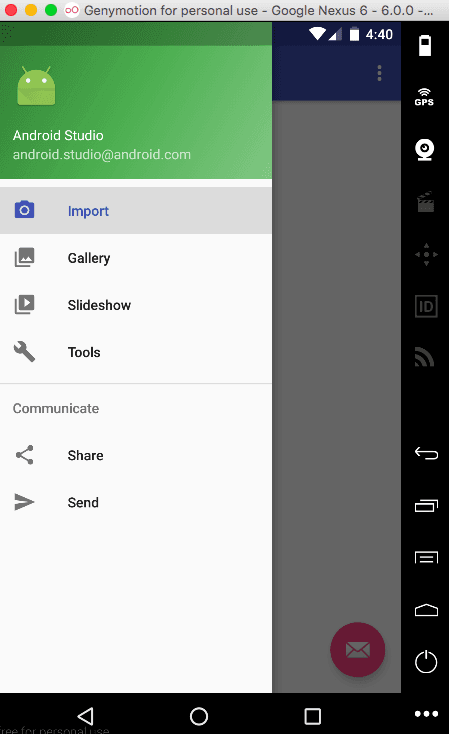
Lưu ý rằng mục được nhấn lần cuối luôn được giữ trạng thái nổi bật (highlight) trong nhóm đầu tiên. Để loại bỏ trạng thái highlight ngay sau khi drawer đóng, hãy đặt thuộc tính android:checkableBehavior thành “none”. Hiện tại, NavigationView đang được vẽ đè lên thanh trạng thái (status bar). Để đưa nó xuống bên dưới thanh trạng thái, hãy đặt thuộc tính android:fitsSystemWindows thành “false” cho NavigationView.
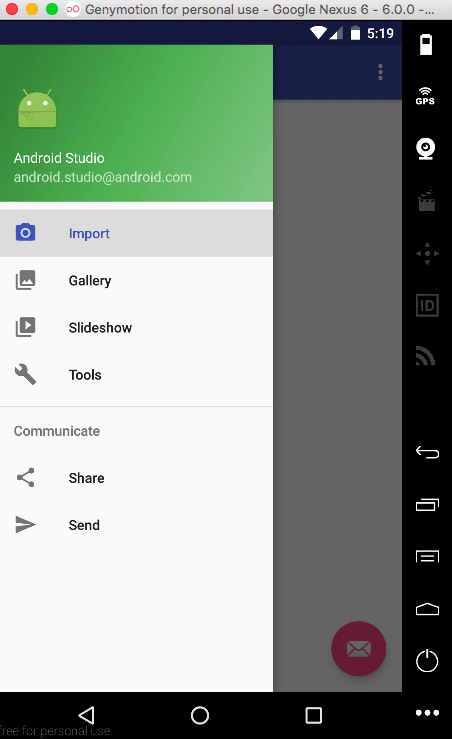
Giờ đây, với các thuộc tính ở trên đã được thiết lập, chúng ta có thể tùy chỉnh giao diện của NavigationView thêm nữa bằng cách đặt nó bên dưới ToolBar/ActionBar (dù điều này không được khuyến khích theo hướng dẫn của Material Design) bằng cách thiết lập android:layout_marginTop=” ?attr/actionBarSize” cho NavigationView, đồng thời đặt android:fitsSystemWindows=”false” cho cả CoordinatorLayout và DrawerLayout
Sau khi tuỳ chỉnh như trên, giao diện sẽ hiển thị như sau:
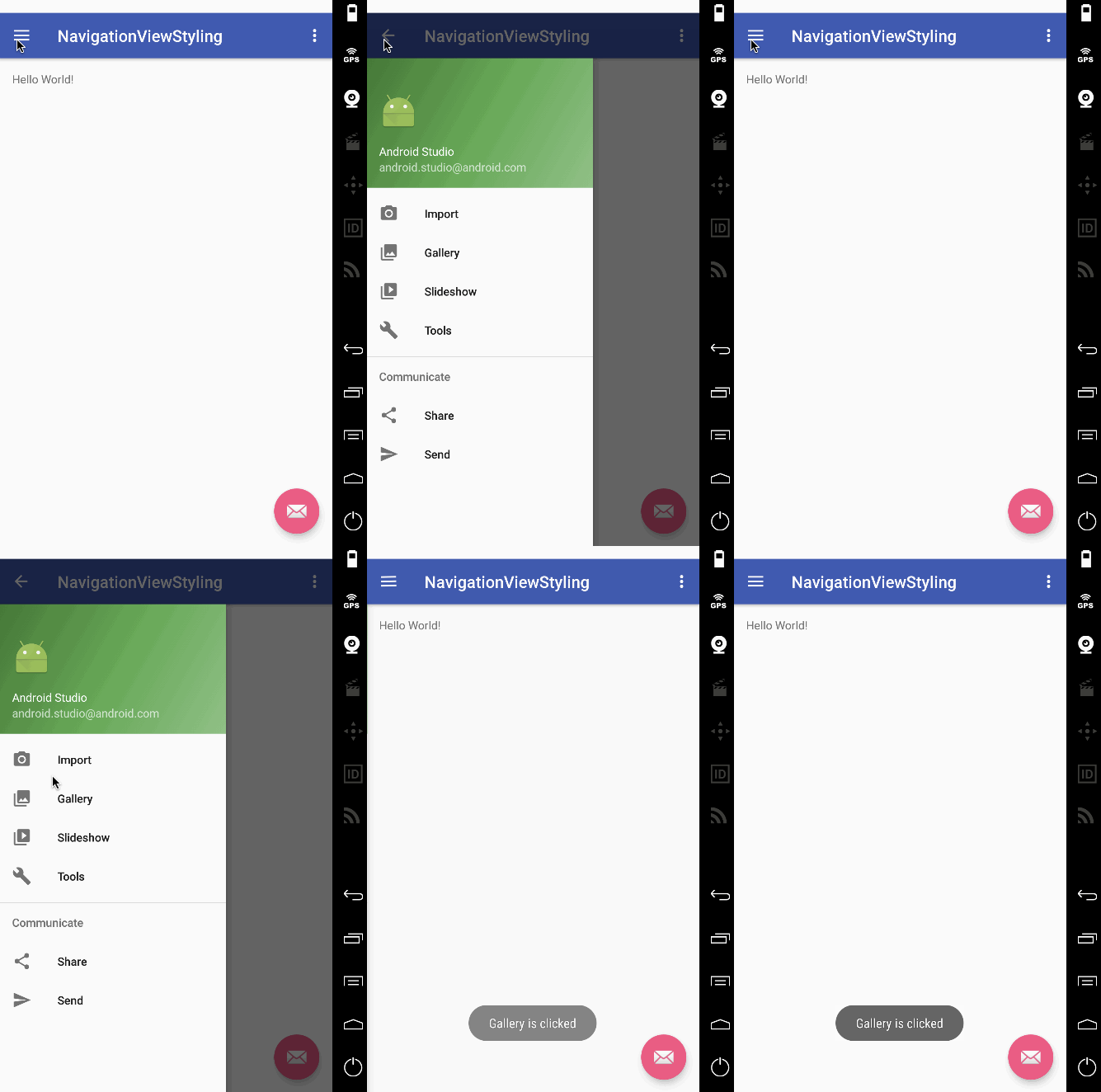
Phần thanh trạng thái màu trắng ở phía trên cùng là do thuộc tính android:fitsSystemWindows được đặt thành false cho cả CoordinatorLayout và DrawerLayout. Việc thay đổi màu thanh trạng thái trong styles.xml bằng cách đặt @color/colorPrimaryDark sẽ không có tác dụng trong trường hợp này. Chúng ta cần một cách tiếp cận tốt hơn. Giải pháp duy nhất là loại bỏ CoordinatorLayout (vì chúng ta cũng không sử dụng animation của nó), đồng thời đưa DrawerLayout và ToolBar vào bên trong một LinearLayout. Dưới đây là các layout XML đã được cập nhật: activity_main.xml
<?xml version="1.0" encoding="utf-8"?> <LinearLayout xmlns:android="<https://schemas.android.com/apk/res/android>" xmlns:app="<https://schemas.android.com/apk/res-auto>" android:orientation="vertical" android:layout_width="match_parent" android:layout_height="match_parent"><!-- The toolbar --> <android.support.v7.widget.Toolbar android:id="@+id/toolbar" android:layout_height="wrap_content" android:layout_width="match_parent" android:fitsSystemWindows="true" android:minHeight="?attr/actionBarSize" android:theme="@style/AppTheme.AppBarOverlay" android:background="?attr/colorPrimary" />
<android.support.v4.widget.DrawerLayout xmlns:android="<https://schemas.android.com/apk/res/android>" android:id="@+id/drawer_layout" android:layout_width="match_parent" android:fitsSystemWindows="true" android:layout_height="match_parent">
<include layout="@layout/app_bar_main" android:layout_width="match_parent" android:layout_height="match_parent" /> <android.support.design.widget.NavigationView android:id="@+id/nav_view" android:layout_width="wrap_content" android:layout_height="match_parent" android:layout_gravity="start" android:fitsSystemWindows="true" app:headerLayout="@layout/nav_header_main" app:menu="@menu/activity_main_drawer" /></android.support.v4.widget.DrawerLayout>
</LinearLayout>
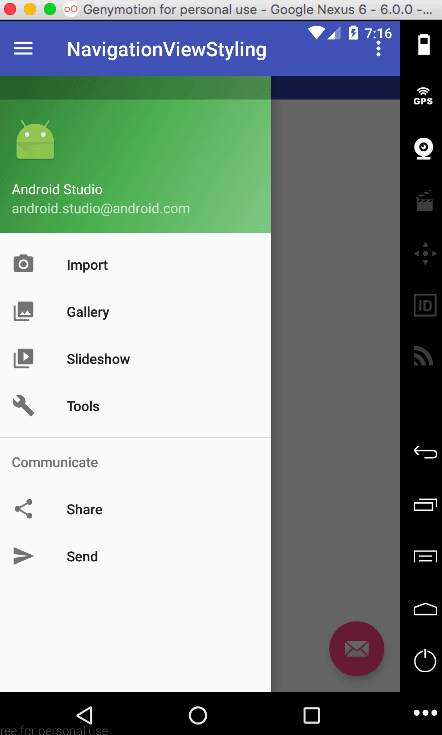
android:fitsSystemWindows=”true” là bắt buộc phải có trong Toolbar. Nếu bỏ qua thuộc tính này, bạn sẽ gặp phải tình trạng giao diện bị lệch giống như hình dưới đây:
Lưu ý: Nếu bạn xoá thuộc tính XML android:theme="@style/AppTheme.AppBarOverlay", màu của các mục trong ToolBar sẽ chuyển sang đen. Hãy thử xem nhé! app_bar_main.xml
<?xml version="1.0" encoding="utf-8"?>
<RelativeLayout xmlns:android="<https://schemas.android.com/apk/res/android>"
xmlns:tools="<https://schemas.android.com/tools>"
android:layout_width="match_parent"
android:layout_height="match_parent"
tools:context="com.journaldev.navigationviewstyling.MainActivity">
<include layout="@layout/content_main" />
<android.support.design.widget.FloatingActionButton
android:id="@+id/fab"
android:layout_width="wrap_content"
android:layout_height="wrap_content"
android:layout_gravity="bottom|end"
android:src="@android:drawable/ic_dialog_email"
android:layout_alignParentBottom="true"
android:layout_margin="@dimen/activity_horizontal_margin"
android:layout_alignParentRight="true"
android:layout_alignParentEnd="true" />
</RelativeLayout>
Đây là giao diện hiện tại của ứng dụng.
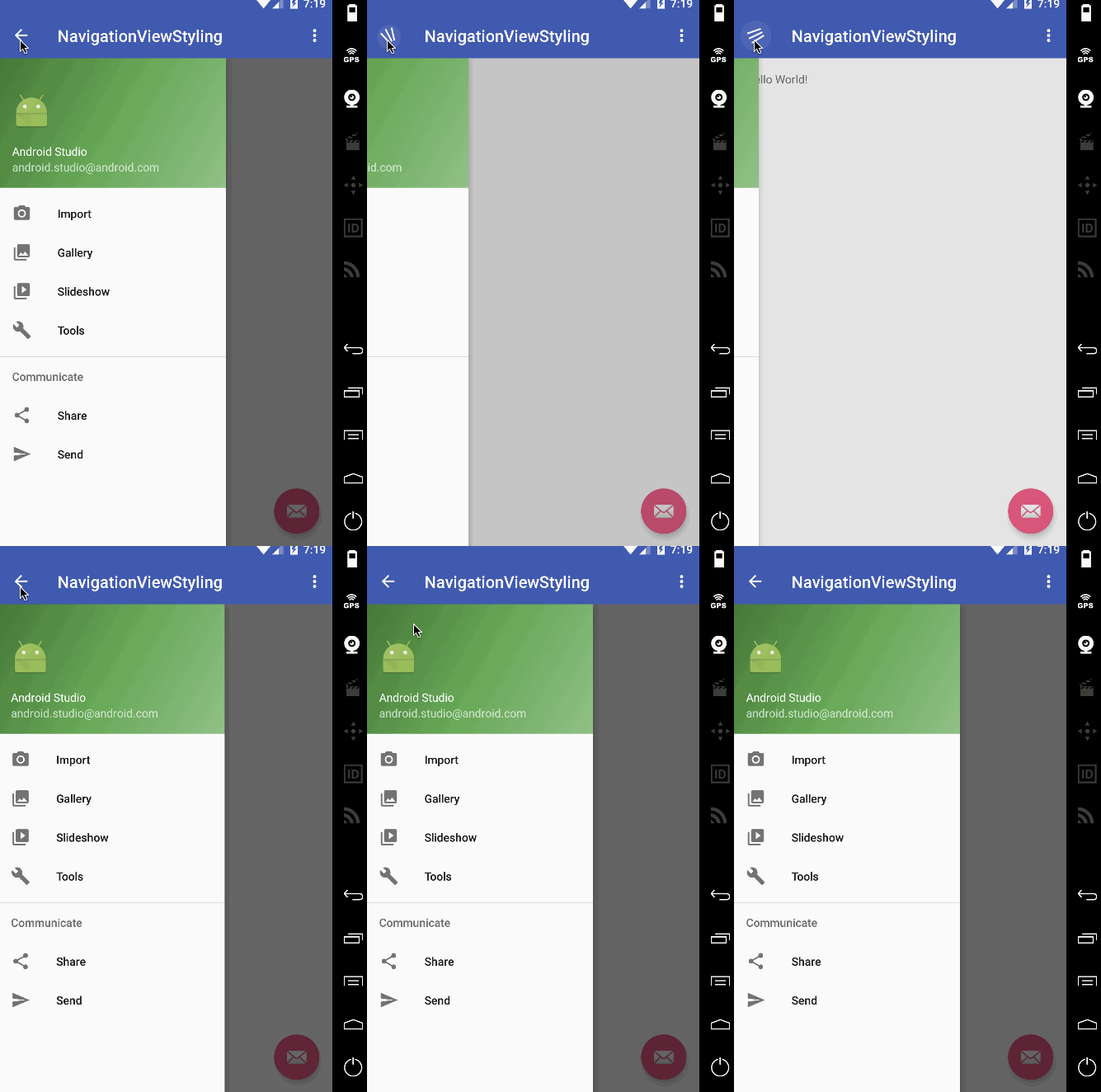
Màu thanh trạng thái (status bar) lại giống hệt với ToolBar, trong khi lẽ ra nó phải tối hơn một chút. Giải pháp: Chỉ cần xoá dòng sau khỏi tệp ****v21/styles.xml:
<item name="android:statusBarColor">@android:color/transparent</item>
Bây giờ, hãy tùy chỉnh NavigationView để nó mở từ phải sang trái!
Chúng ta sẽ thêm tệp hình ảnh biểu tượng hamburger (định dạng PNG) của riêng mình vào thư mục drawable như minh hoạ bên dưới.
Layout activity_main.xml hiện được định nghĩa như sau:
<?xml version="1.0" encoding="utf-8"?>
<LinearLayout xmlns:android="<https://schemas.android.com/apk/res/android>"
xmlns:app="<https://schemas.android.com/apk/res-auto>"
xmlns:tools="<https://schemas.android.com/tools>"
android:orientation="vertical"
android:layout_width="match_parent"
android:layout_height="match_parent">
<!-- The toolbar -->
<RelativeLayout
android:layout_width="match_parent"
android:fitsSystemWindows="true"
android:layout_height="wrap_content">
<android.support.v7.widget.Toolbar
android:id="@+id/toolbar"
android:layout_width="match_parent"
android:layout_height="wrap_content"
android:minHeight="?attr/actionBarSize"
android:background="?attr/colorPrimary"
android:fitsSystemWindows="true"
android:theme="@style/AppTheme.AppBarOverlay" />
<FrameLayout
android:id="@+id/drawer_button"
android:layout_width="50dp"
android:layout_height="?attr/actionBarSize"
android:fitsSystemWindows="true"
android:layout_alignParentRight="true"
android:clickable="true">
<ImageView
android:layout_width="wrap_content"
android:layout_height="wrap_content"
android:layout_gravity="center_horizontal|center_vertical"
android:src="@drawable/ic_action_not_black" />
</FrameLayout>
</RelativeLayout>
<android.support.v4.widget.DrawerLayout
xmlns:android="<https://schemas.android.com/apk/res/android>"
android:id="@+id/drawer_layout"
android:layout_width="match_parent"
android:fitsSystemWindows="true"
android:layout_height="match_parent"
tools:openDrawer="end">
<include
layout="@layout/app_bar_main"
android:layout_width="match_parent"
android:layout_height="match_parent" />
<android.support.design.widget.NavigationView
android:id="@+id/nav_view"
android:layout_width="wrap_content"
android:layout_height="match_parent"
android:layout_gravity="end"
android:fitsSystemWindows="true"
app:itemTextColor="#1d3f4c"
app:itemIconTint="#cd4312"
app:headerLayout="@layout/nav_header_main"
app:menu="@menu/activity_main_drawer" />
</android.support.v4.widget.DrawerLayout>
</LinearLayout>
Chúng ta đã đặt ToolBar với một FrameLayout bên trong một RelativeLayout. android\:fitSystemWindows cần được đặt là true cho cả ba thành phần. DrawerLayout chứa tools\\:openDrawer="end" và android\\:layout\\_gravity="end" để thay đổi vị trí mặc định của drawer sang bên phải. Lý tưởng nhất là sử dụng một ảnh đại diện tròn trong NavigationView. Ta sẽ thêm thư viện phụ thuộc de.hdodenhof.circleimageview\\.CircleImageView và sử dụng nó trong file nav\_header\_main.xml như sau: nav\\_header\\_main.xml
<?xml version="1.0" encoding="utf-8"?>
<LinearLayout xmlns:android="<https://schemas.android.com/apk/res/android>"
android:layout_width="match_parent"
android:layout_height="@dimen/nav_header_height"
android:background="@drawable/side_nav_bar"
android:gravity="bottom"
android:orientation="vertical"
android:paddingBottom="@dimen/activity_vertical_margin"
android:paddingLeft="@dimen/activity_horizontal_margin"
android:paddingRight="@dimen/activity_horizontal_margin"
android:paddingTop="@dimen/activity_vertical_margin"
android:theme="@style/ThemeOverlay.AppCompat.Dark">
<de.hdodenhof.circleimageview.CircleImageView
android:id="@+id/imageView"
android:layout_width="75dp"
android:layout_height="75dp"
android:paddingTop="@dimen/nav_header_vertical_spacing"
android:src="@drawable/profile" />
<TextView
android:layout_width="match_parent"
android:layout_height="wrap_content"
android:paddingTop="@dimen/nav_header_vertical_spacing"
android:text="Anupam Chugh"
android:textAppearance="@style/TextAppearance.AppCompat.Body1" />
<TextView
android:id="@+id/textView"
android:layout_width="wrap_content"
android:layout_height="wrap_content"
android:text="www.JournalDev.com" />
</LinearLayout>
Các layout XML khác giống hệt như đã được đề cập ở trên. MainActivity.java được liệt kê dưới đây
package com.journaldev.navigationviewtyling;import android.os.Bundle; import android.support.design.widget.FloatingActionButton; import android.support.design.widget.Snackbar; import android.view.View; import android.support.design.widget.NavigationView; import android.support.v4.view.GravityCompat; import android.support.v4.widget.DrawerLayout; import android.support.v7.app.ActionBarDrawerToggle; import android.support.v7.app.AppCompatActivity; import android.support.v7.widget.Toolbar; import android.view.MenuItem; import android.widget.Toast;
public class MainActivity extends AppCompatActivity implements NavigationView.OnNavigationItemSelectedListener {
DrawerLayout drawer; @Override protected void onCreate(Bundle savedInstanceState) { super.onCreate(savedInstanceState); setContentView(R.layout.activity_main); Toolbar toolbar = (Toolbar) findViewById(R.id.toolbar); setSupportActionBar(toolbar); drawer = (DrawerLayout) findViewById(R.id.drawer_layout); findViewById(R.id.drawer_button).setOnClickListener(new View.OnClickListener() { @Override public void onClick(View v) { // open right drawer if (drawer.isDrawerOpen(GravityCompat.END)) { drawer.closeDrawer(GravityCompat.END); } else drawer.openDrawer(GravityCompat.END); } }); FloatingActionButton fab = (FloatingActionButton) findViewById(R.id.fab); fab.setOnClickListener(new View.OnClickListener() { @Override public void onClick(View view) { Snackbar.make(view, "Replace with your own action", Snackbar.LENGTH_LONG) .setAction("Action", null).show(); } }); ActionBarDrawerToggle toggle = new ActionBarDrawerToggle( this, drawer, toolbar, R.string.navigation_drawer_open, R.string.navigation_drawer_close); toggle.setDrawerIndicatorEnabled(false); drawer.addDrawerListener(toggle); toggle.syncState(); NavigationView navigationView = (NavigationView) findViewById(R.id.nav_view); navigationView.setNavigationItemSelectedListener(this); } @Override public void onBackPressed() { if (drawer.isDrawerOpen(GravityCompat.END)) { drawer.closeDrawer(GravityCompat.END); } else { super.onBackPressed(); } } @SuppressWarnings("StatementWithEmptyBody") @Override public boolean onNavigationItemSelected(MenuItem item) { // Handle navigation view item clicks here. int id = item.getItemId(); if (id == R.id.nav_camera) { // Handle the camera action Toast.makeText(getApplicationContext(), "Camera is clicked", Toast.LENGTH_SHORT).show(); } else if (id == R.id.nav_gallery) { Toast.makeText(getApplicationContext(), "Gallery is clicked", Toast.LENGTH_SHORT).show(); } else if (id == R.id.nav_slideshow) { Toast.makeText(getApplicationContext(), "Slideshow is clicked", Toast.LENGTH_SHORT).show(); } else if (id == R.id.nav_manage) { Toast.makeText(getApplicationContext(), "Tools is clicked", Toast.LENGTH_SHORT).show(); } else if (id == R.id.nav_share) { Toast.makeText(getApplicationContext(), "Share is clicked", Toast.LENGTH_SHORT).show(); } else if (id == R.id.nav_send) { Toast.makeText(getApplicationContext(), "Send is clicked", Toast.LENGTH_SHORT).show(); } DrawerLayout drawer = (DrawerLayout) findViewById(R.id.drawer_layout); drawer.closeDrawer(GravityCompat.END); return true; }}
Các kết luận quan trọng rút ra từ đoạn mã trên là:
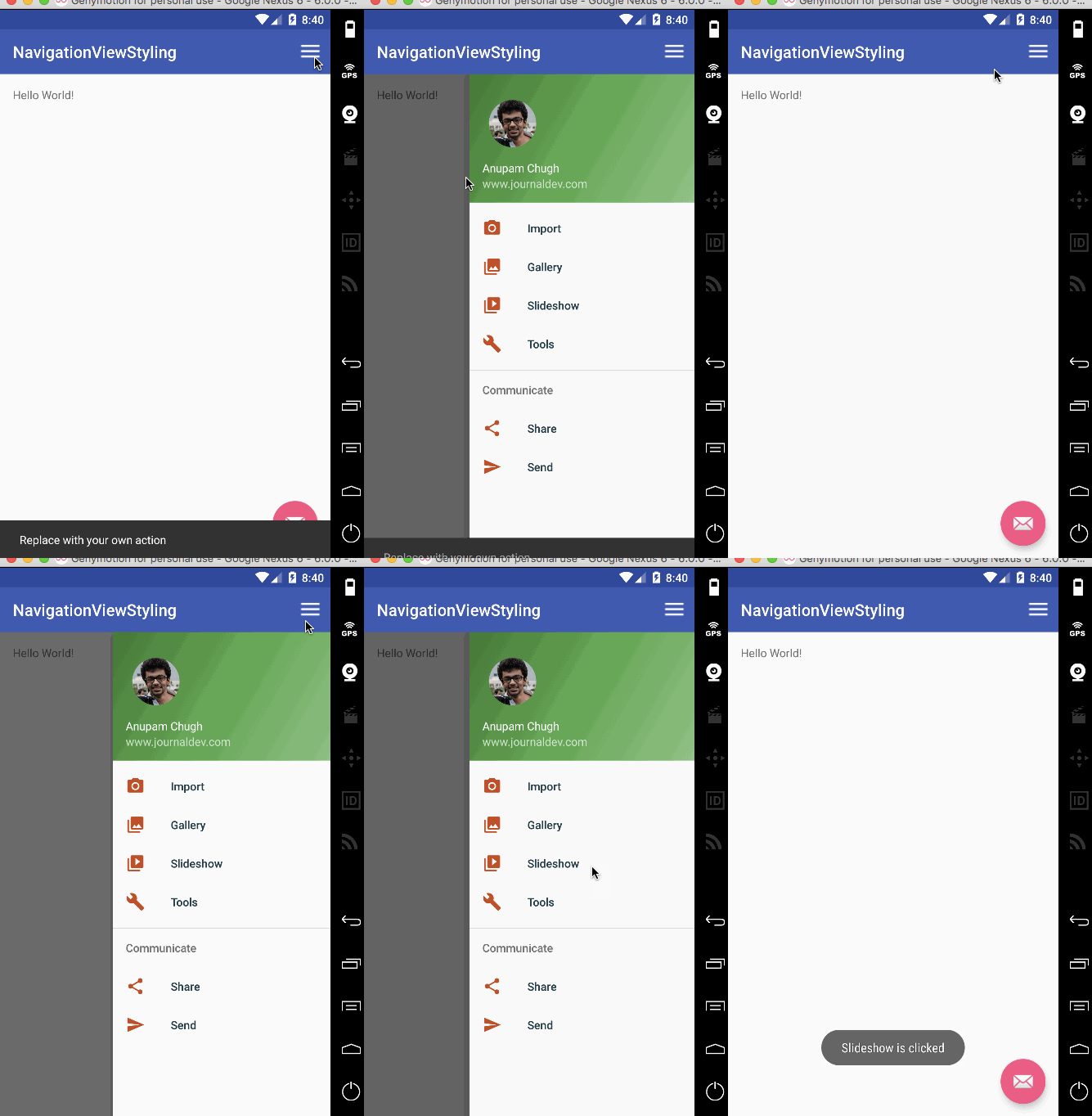
toggle.setDrawerIndicatorEnabled(false); : Dòng này dùng để ẩn biểu tượng hamburger mặc định được hiển thị ở bên trái.Kết quả đầu ra của ứng dụng khi chạy được hiển thị bên dưới.